Description
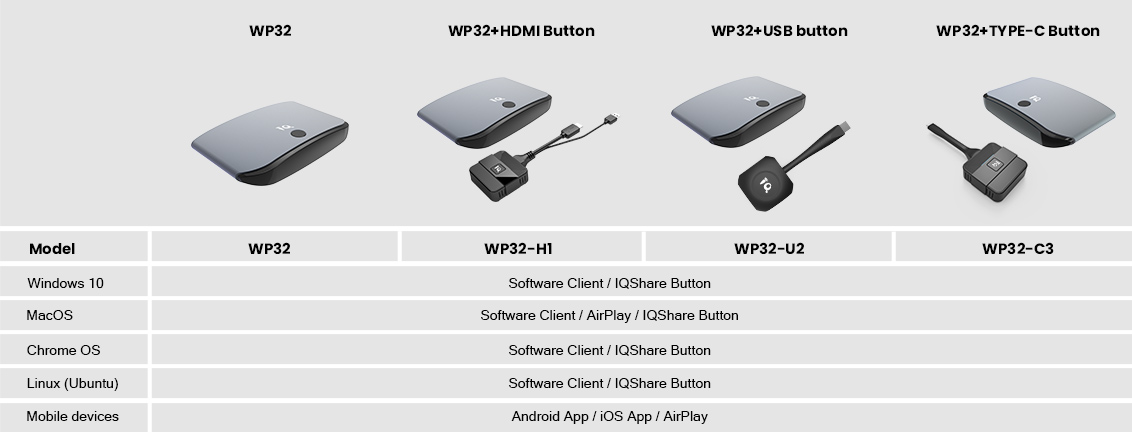

· Easy pairing
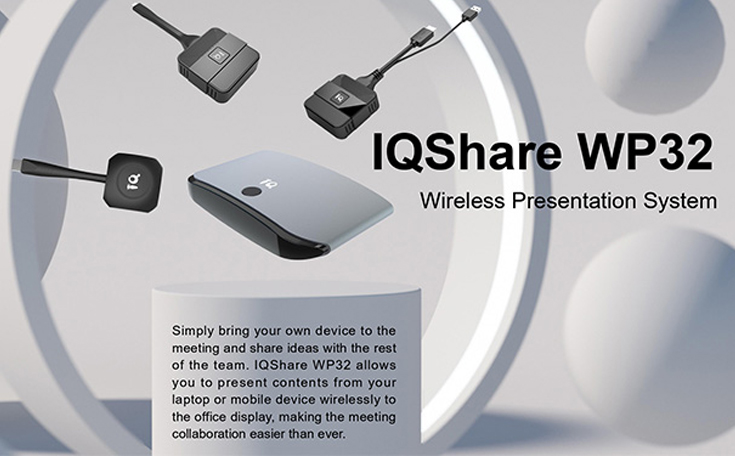
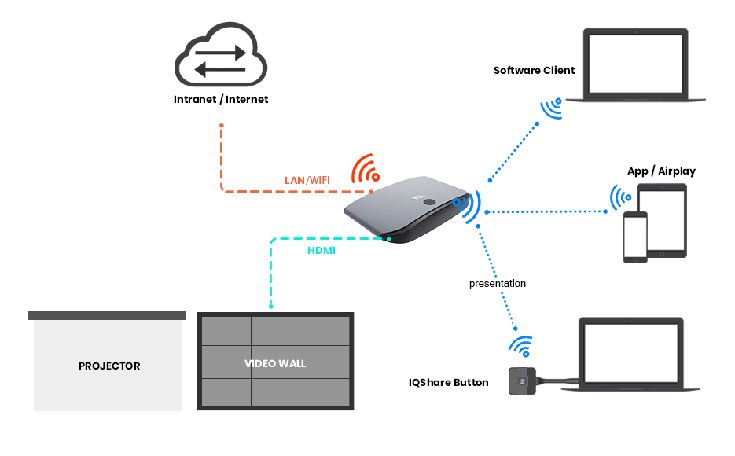
For guests who don’t have access to the company network, they can still present wirelessly with their laptops through IQShare Button. Network connectivity is not a must for temporary users.
· Screen sharing without network
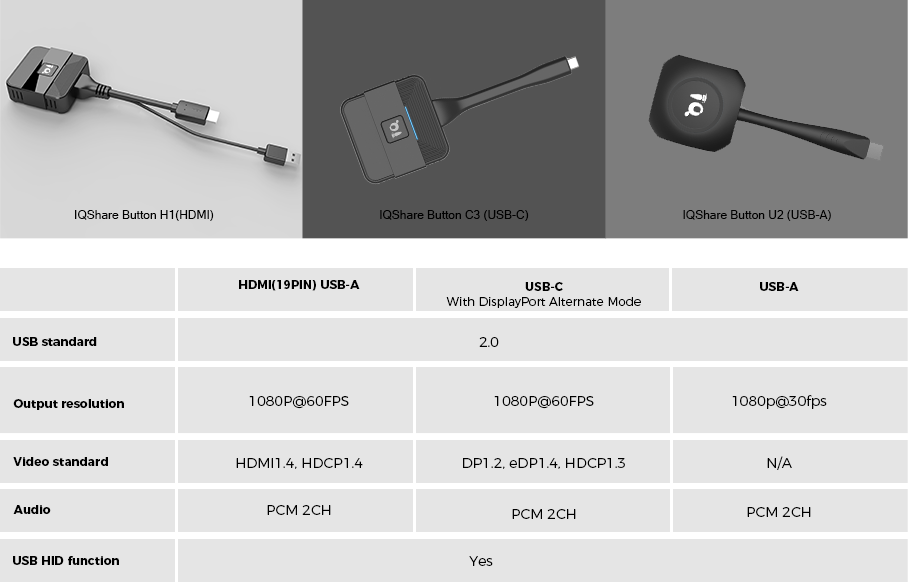
IQShare Button only needs to be paired with the base unit once and ready for use. No driver is required. Everytime when you want to share your laptop screen, simply plug the button into the laptop, press and present.
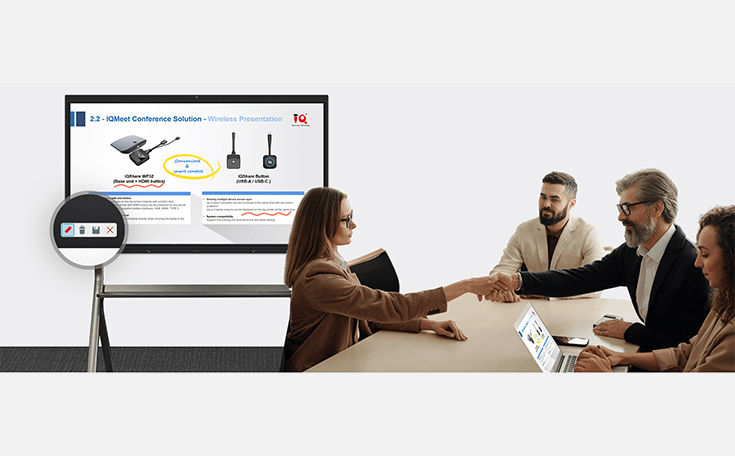
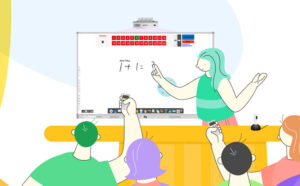
· Easy annotation
Meeting collaboration becomes easy when you can make annotations freely on the big screen with the content shared by the group.
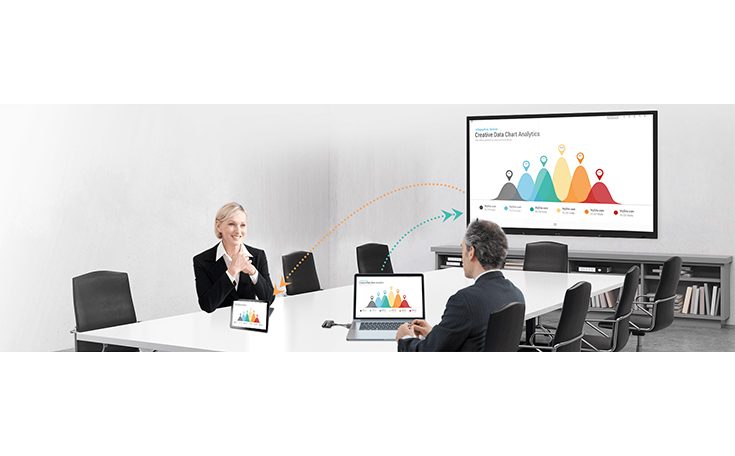
Convenient & smart control
The content presented wirelessly via IQShare on the office display can also be shared simultaneously to each of the personal devices from the rest of the team. When the meeting room is large and you are sitting far away from the display, you can still see the meeting contents clearly from your personal device and get participated.
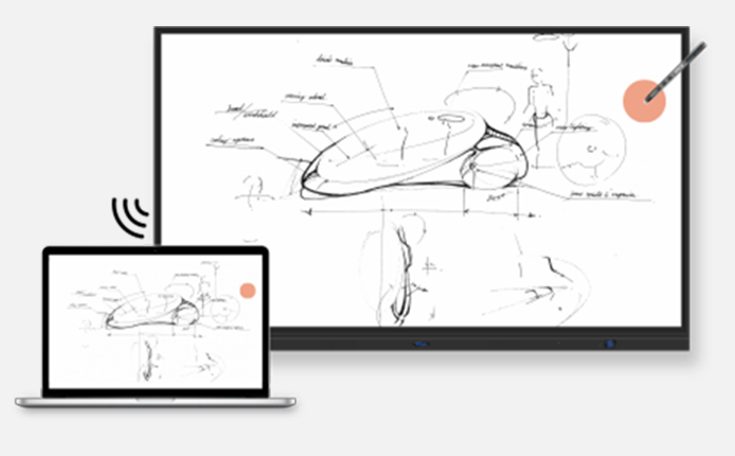
·Touch back control
Touch on the screen to control laptop directly while mirroring the laptop to the Touch screen.
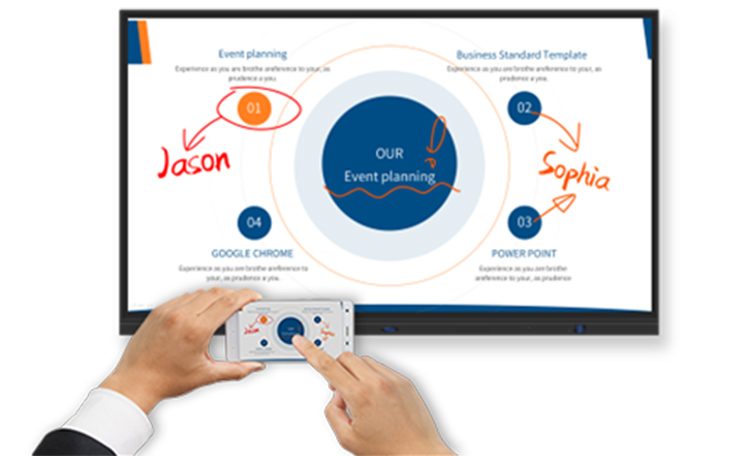
·Smart control on office display
Use mobile phone or laptop to realize air mouse, remote control, keyboard and other functions, everyone can easily control the office display at their seat.
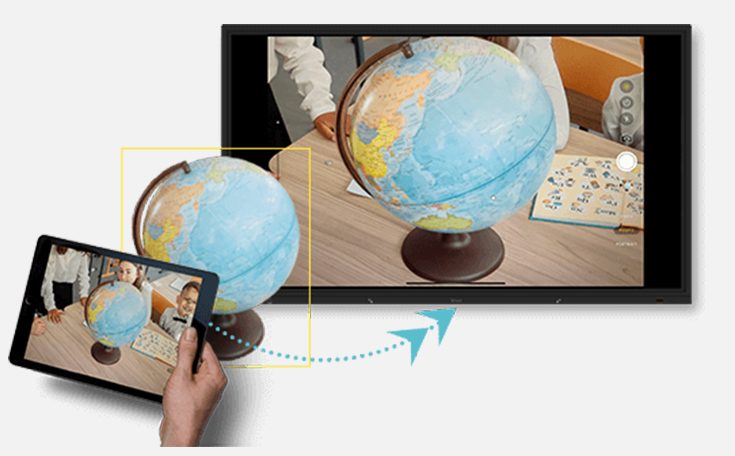
·Mobile visualizer
Shooting real objects or documents with the built-in camera of your mobile phone or tablets, using it as a temporary visualizer to present the content wirelessly on the large screen during the meeting

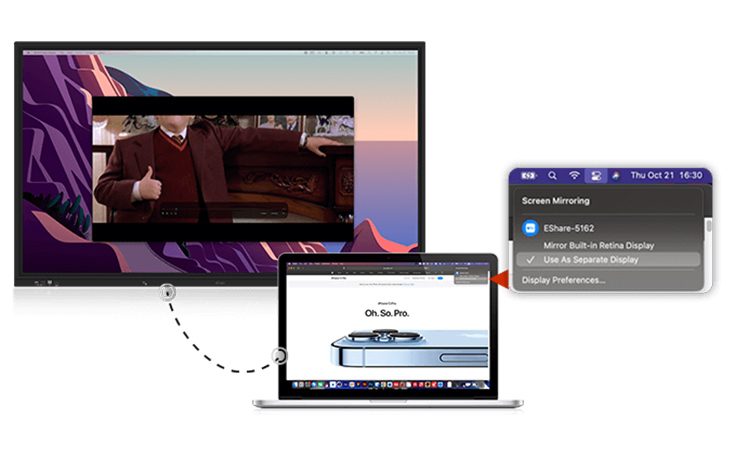
·Extended screen
User can set the office display as an extended screen and directly drag the presentation content to the big screen without exposing the rest of his PC desktop.
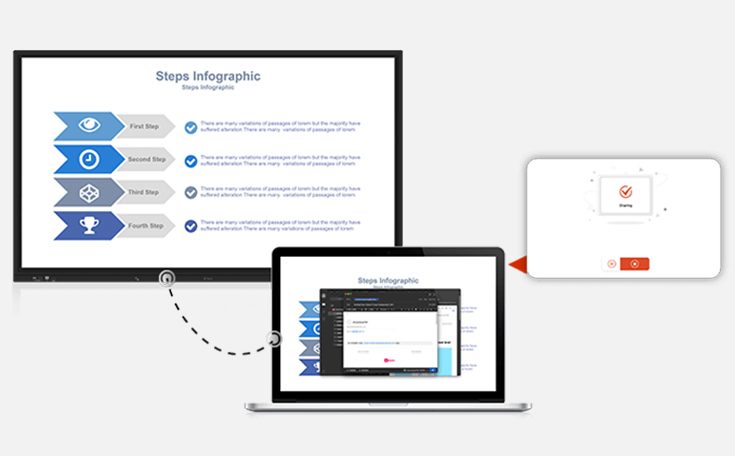
·Freeze screen
No need to disconnect the screen sharing when you want to deal with some personal stuff on your device, just freeze the content being shared on the big screen.
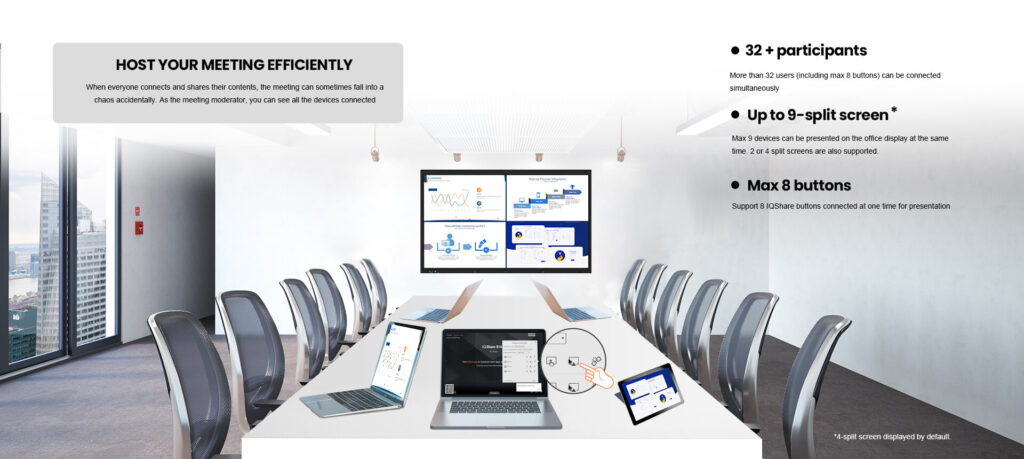
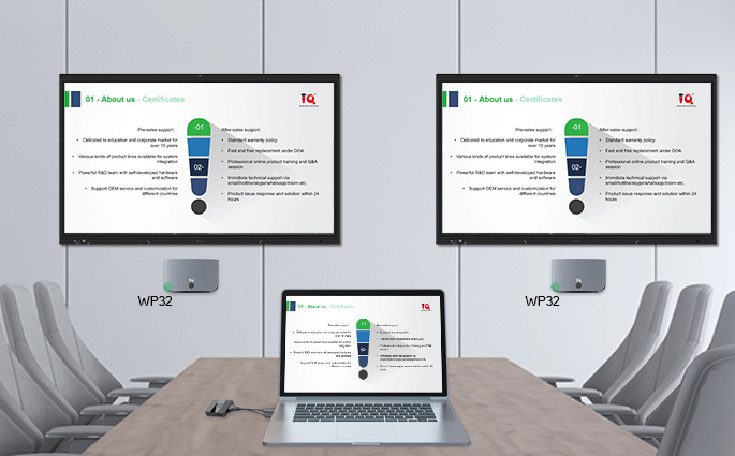
(1) From one personal device to multiple displays
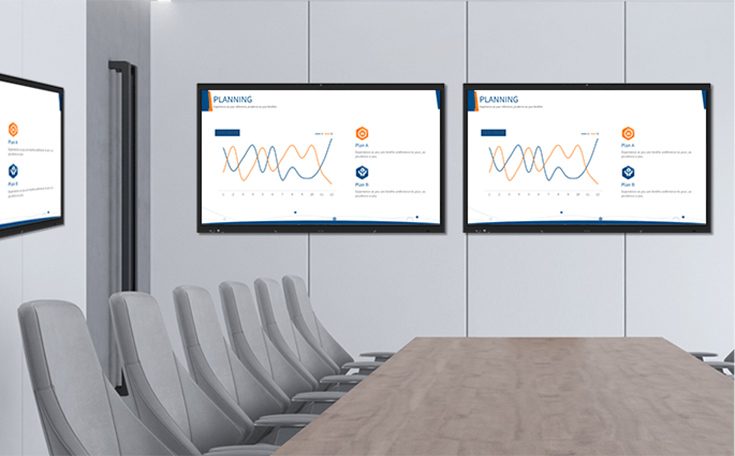
(2) From one display to the rest of the displays.